
Overview
The ARK Portal provide direct integration with cloud-based analytical trusted-research environments, allowing you to seamlessly transfer datasets for computational analysis without manual downloads. Supported platforms include:
-
Cavatica - A cloud-based data analysis platform powered by Seven Bridges
-
Terra.bio - A biomedical research platform by The Broad Institute
Prerequisites
Before sending data to an analysis platform:
-
Create an account on your chosen cloud workbench (i.e., Cavatica or Terra)
-
Link your account to the data portal through your user profile settings
-
Accept the required terms of use for both the portal and analytical platform
-
Verify data access permissions - You must have appropriate access to the datasets you want to transfer. Visit the ARK Portal Access & Attribution help documents for more details.
How to Send Data
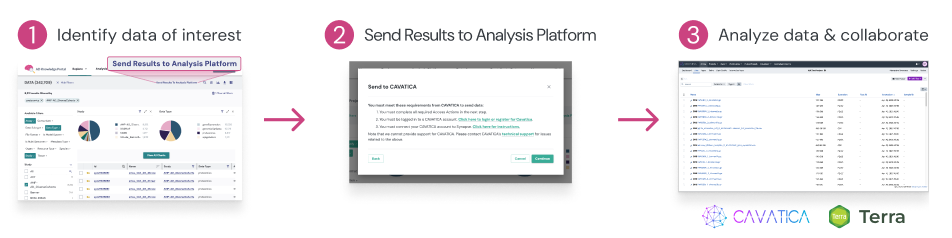
Step 1: Select Your Data
Navigate to the Explore or Data section of the portal and use filters to find datasets of interest. You can select:
-
Individual files
-
Entire datasets
-
Multiple files across different studies
Add items to your selection using checkboxes or an "Add to Cart" feature.
Step 2: Initiate Transfer
-
Click the "Send to [Platform Name]" button (location varies by portal - typically in the top navigation, cart, or file browser)
-
Choose your destination & sign in to your workbench account when prompted
-
Grant permission for the portal to access your workbench account
Step 3: Confirm Transfer
-
Review your selected files and destination
-
For Cavatica: Select an existing project from a dropdown of your current projects or create a new project
-
For Terra: Select an existing workspace or provide a project name to create a new workspace
-
-
Click "Confirm" or "Export" to begin the transfer
-
Wait for the confirmation message - transfers typically complete within seconds to minutes depending on dataset size
-
You can close the portal window and transfer continues in the background
Step 4: Access Your Data
-
Navigate to your analysis platform account
-
Open the destination project
-
Files will appear in the project's data section, organized by study or file type
-
Metadata and file manifests are typically included automatically
Important Notes
DRS (Data Repository Service) Connections
DRS is a standardized API that enables secure, direct data access between repositories and analysis platforms. When a platform has "DRS connection," it eliminates the need to manually download and upload data. The analytical platform can directly access files from Synapse with proper permissions.
You only need to authorize the connection once, then data appears automatically in your analysis workspace without manual file transfers. The authorization must be refreshed periodically to maintain security, at which point you’ll be prompted to reconnect.
Key Advantages
-
No physical copying: The platform receives secure access to files stored in cloud buckets without waiting for downloads or duplicating data.
-
Immediate availability: Files are accessible in your project immediately after transfer, leading to faster workflow setup.
-
No cost for transfer or storage: Sending data from Synapse to integrated platforms does not incur egress or storage fees. The alternative is self-managed compute environments that require manual data transfer using command-line tools or APIs.
-
Original data remains: Portal data is not removed or affected by the transfer, with better data provenance tracking.
-
Collaborative & cost-effective: Easily share analysis and results with team members in a secure environment and only pay for the comptuational resources you use.
Platform-Specific Information
Cavatica:
-
Organize data into projects that can be shared with collaborators
-
Supports CWL and WDL workflows
-
Includes pre-loaded analysis tools and pipelines
Terra:
-
Data is transferred to workspace data tables
-
Supports WDL workflows through Cromwell
-
Integrates with Google Cloud Platform
Authentication & Security
-
Reconnect if needed - Authentication tokens may expire; re-link your account in portal settings if transfers fail
-
Permission-based - Only data you have authorized access to can be transferred and is verified before transfer occurs
-
Audit trails - Transfers are logged for compliance and reproducibility
Troubleshooting
Problem: "Send to Platform" button is disabled or unavailable
Solution: Ensure you have linked your platform account in your portal profile settings
Problem: Transfer fails or times out
Solution: Check that your platform account is active and authentication hasn't expired; re-authenticate in portal settings
Problem: Files don't appear in destination project
Solution: Refresh the platform interface; verify you selected the correct project; check that files completed transfer in the activity log
Problem: Don't see your desired platform option
Solution: Confirm the platform is supported by your specific data portal; check if additional access requests are required
Additional Resources
-
If you have questions, suggestions, or feedback about the ARK Portal, please contact us through the ARK Portal Service Desk.
-
For general question or issue related to Synapse please contact through the Synapse help desk